

ai2svelte settings
The ai2svelte plugin comes with sensible default settings optimized for most workflows. However, you can easily customize these settings through the plugin’s Home tab to better suit your specific needs and project requirements.
Check out the ai2svelte settings reference for detailed explanations of each available setting.
namespace: g-image_format: jpgwrite_image_files: trueresponsiveness: dynamictext_responsiveness: dynamicoutput: one-filehtml_output_path: ../src/lib/ai2svelte/html_output_extension: .svelteimage_output_path: ../src/statics/images/graphics/image_source_path: images/graphics/png_transparent: truepng_number_of_colors: 256jpg_quality: 90center_html_output: trueuse_2x_images_if_possible: trueuse_lazy_loader: falseinclude_resizer_widths: trueinclude_resizer_css: trueinline_svg: truesvg_embed_images: falserender_text_as: htmlrender_rotated_skewed_text_as: htmltesting_mode: falseshow_completion_dialog_box: truepriority_fetch: falsefit_mode: widthoverride_text: falseallow_overflow: falseAdding/Removing properties
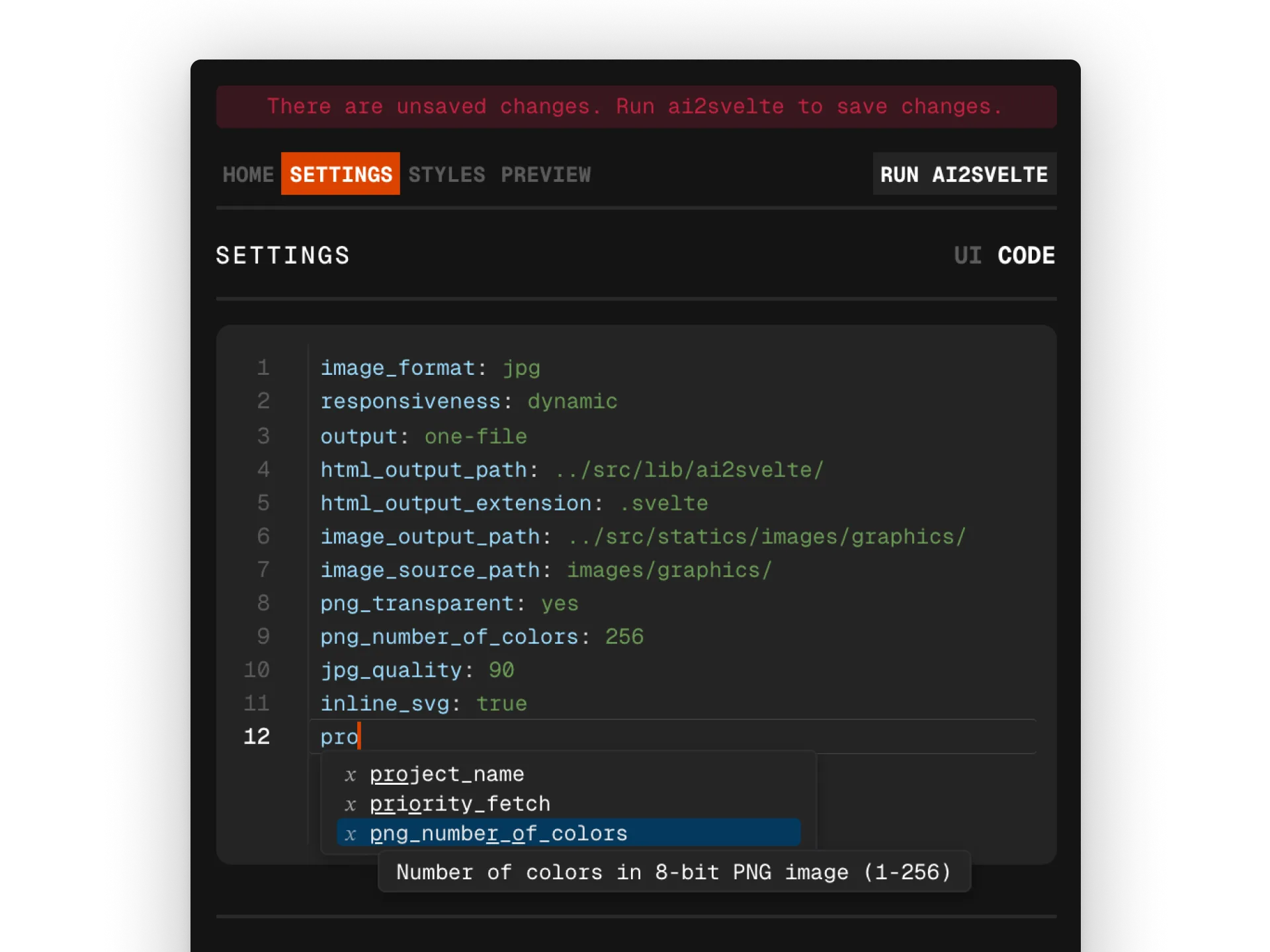
Section titled “Adding/Removing properties”- Open the
Settingstab in the ai2svelte panel. - Switch from
UItoCodeformat view. - Add your new property as a key-value pair in YAML format.
The code editor provides helpful features to streamline property management, including syntax highlighting and intelligent value suggestions to ensure proper configuration.
Saving custom defaults
Section titled “Saving custom defaults”To save your current settings as the new default configuration, navigate to the bottom of the Settings tab and click the Save Profile button. Input default when prompted for the profile name and click OK. This action will store your current settings in the default profile, which will be used as the baseline for all future projects unless changed again.
Restoring default settings
Section titled “Restoring default settings”To restore all ai2svelte settings to their factory defaults, navigate to the bottom of the Settings tab and click the Reset Config button. This will revert all custom configurations back to the settings stored in the default profile. If the default profile has been modified, the settings will revert to these custom values instead of the original factory defaults.