

Profiles
You can now export your ai2svelte settings as Profiles, allowing you to save and load different configurations for various projects or workflows. This feature is particularly useful when working on multiple projects with distinct requirements, as it enables you to quickly switch between settings without manually adjusting each option.
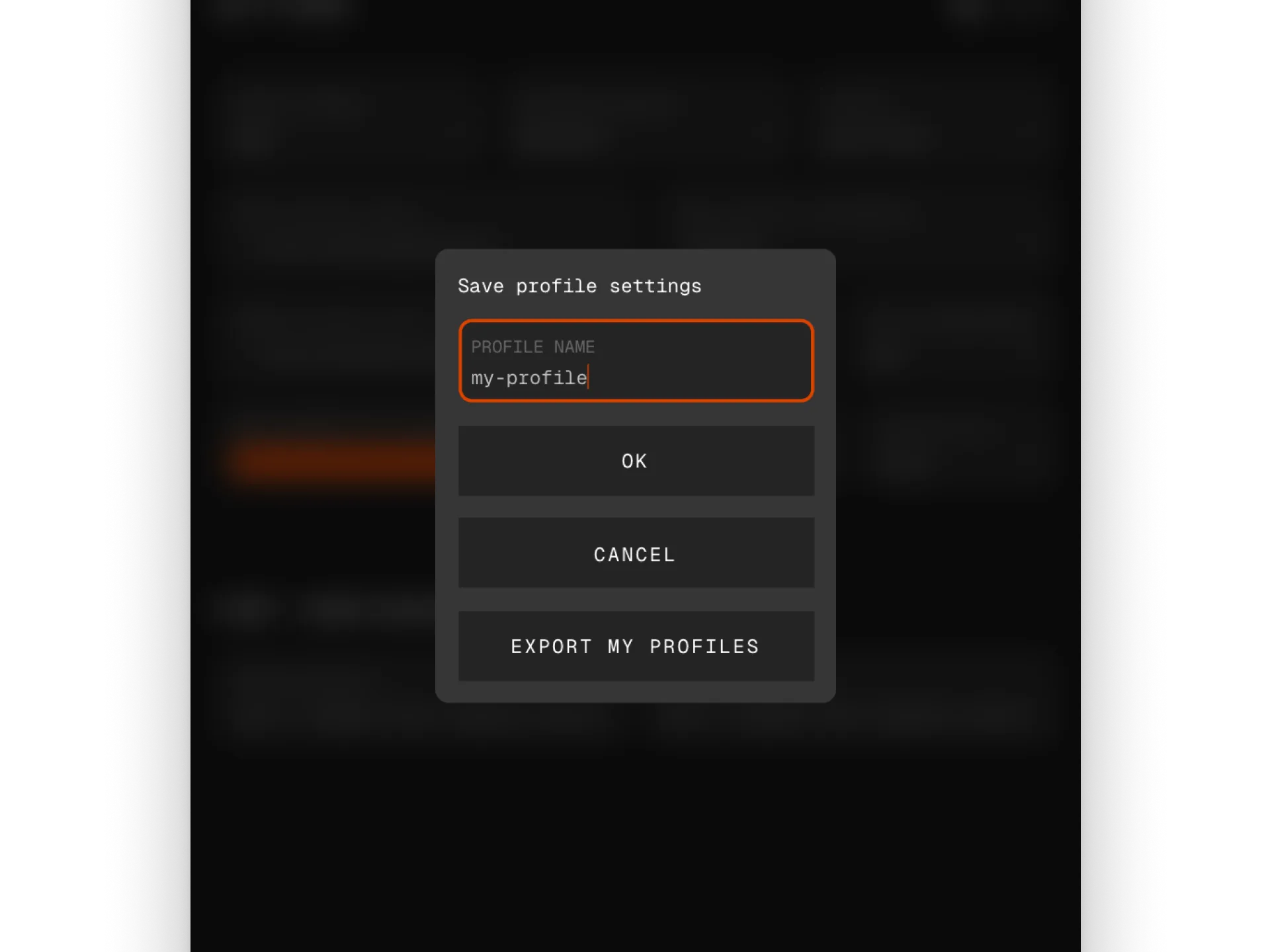
Share profiles
Section titled “Share profiles”Furthermore, Profiles can be shared with team members or across different machines, ensuring consistency in export settings and streamlining collaboration. To share your local Profiles with others, open up Settings tab, click on Save Profile and select Export my profiles. This will generate profiles.json file that you can share with others.
To load Profiles shared by others, open up Settings tab and click on Load Profile button and select Import from file option. This saves all the external profiles in your local storage for future use. You can now select Load Profile dropdown to load any of the saved profiles.
Default profile
Section titled “Default profile”The extension comes loaded with a default profile named default that contains the recommended settings for most use-cases. To modify your default profile, simply load it from the Load Profile dropdown, make your desired changes in the settings, and then save it back using the Save Profile button.
Any subsequent calls to Reset Config will now reset the settings to those defined in your default profile, rather than the factory settings. This allows you to maintain your preferred default configuration while still having the option to revert to it easily.