

Mobile & Desktop Annotations
Datawrapper lets you create annotations that only appear on mobile or only on desktop. This is useful when you need to reposition or rewrite labels to avoid overlap on different sizes.
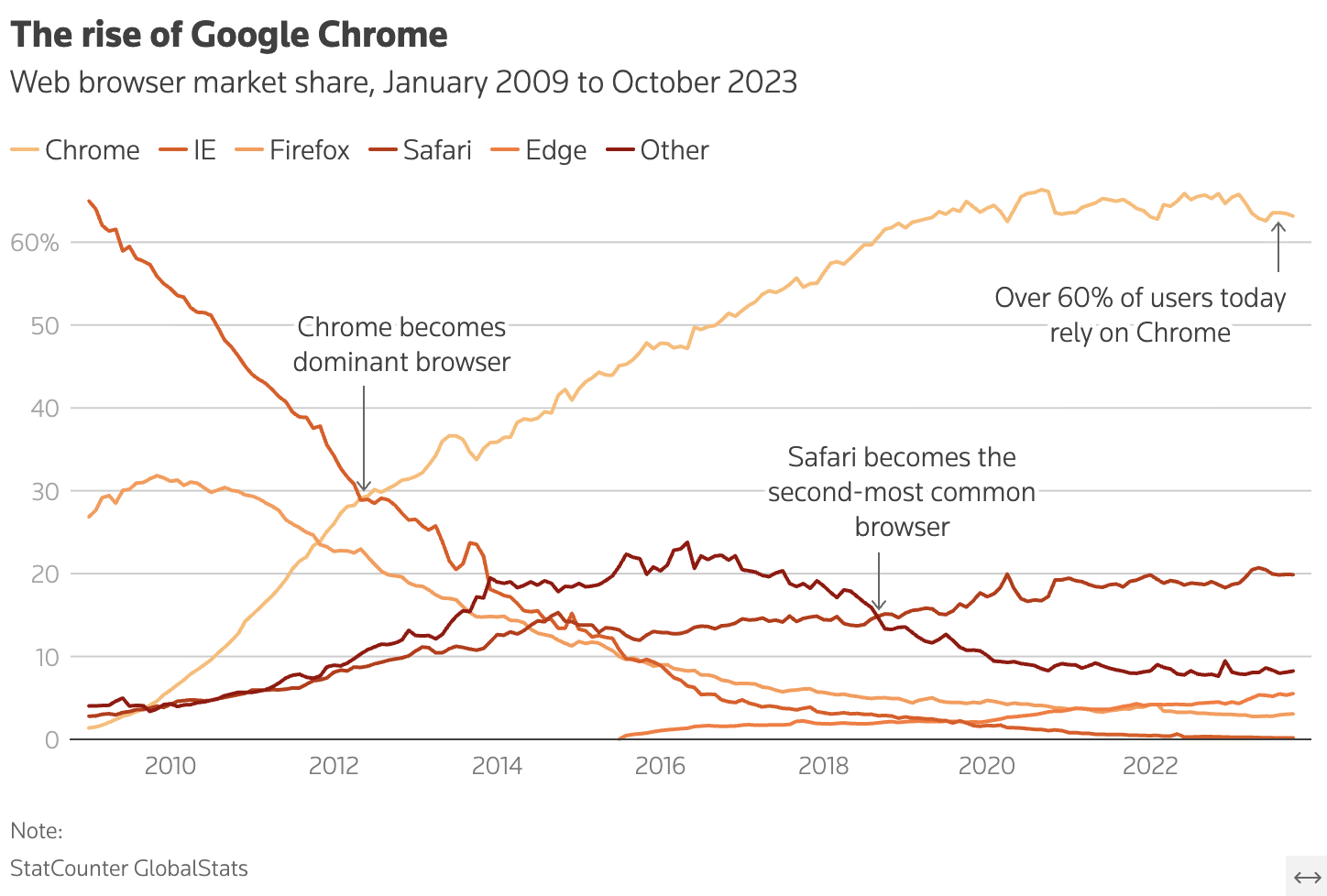
Here’s a chart on desktop, with annotations that look fine:
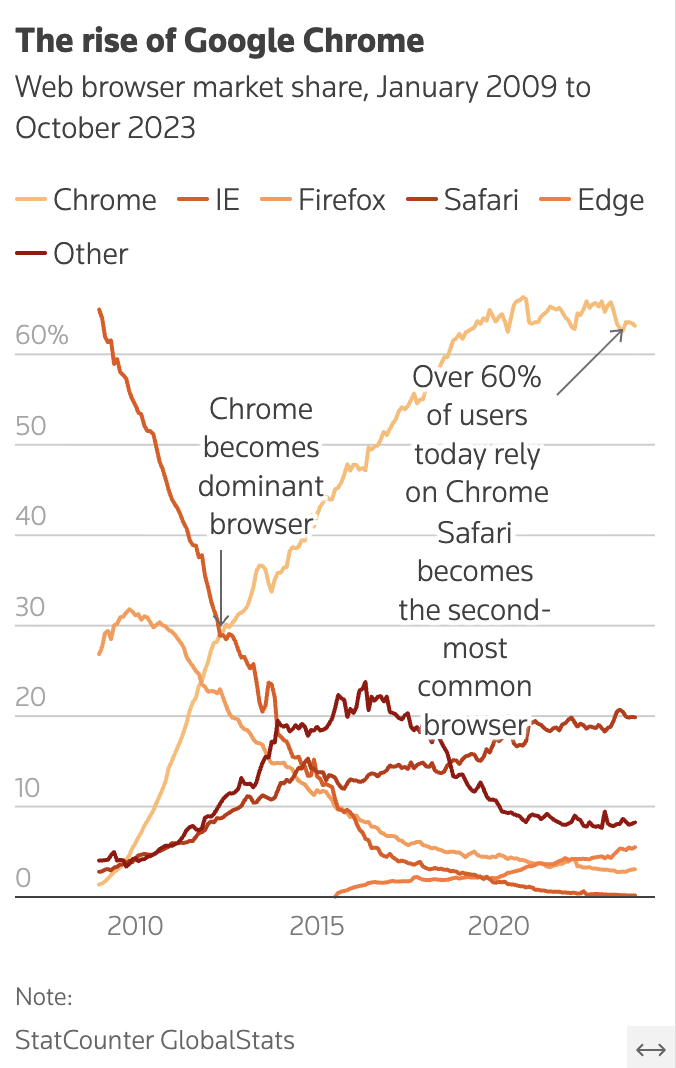
And here’s that same version on mobile, where roughly two thirds of our readers would see it:
How annotations work in Datawrapper
Annotations are added in the “Annotate” tab of the chart editor. Each annotation has a visibility toggle that controls whether it shows on mobile, desktop, or both.
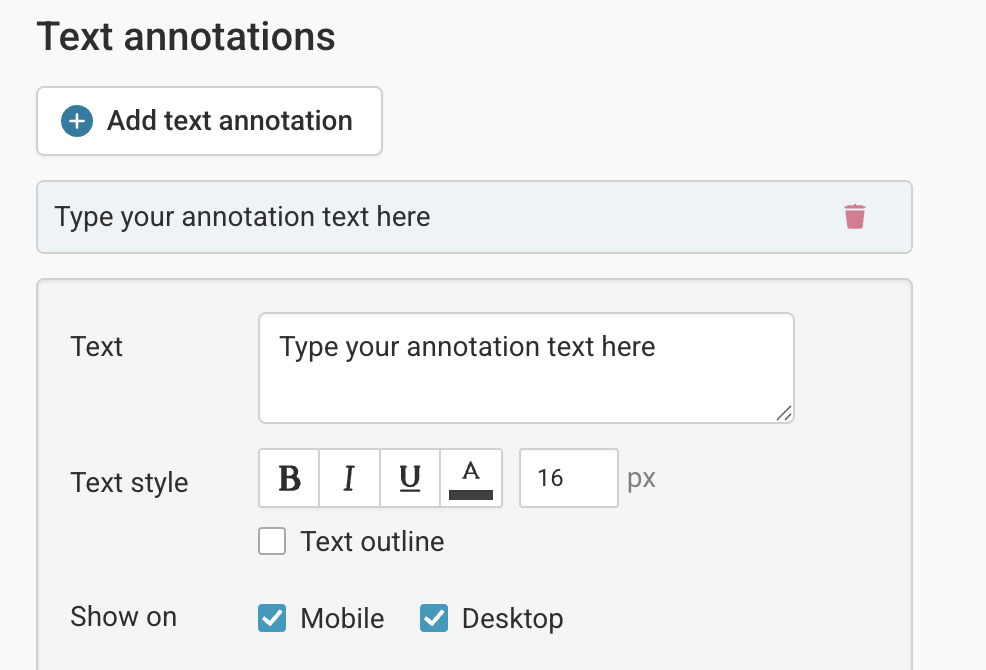
Adding a desktop-only annotation
- Open your chart and go to the “Annotate” tab.
- Click “Add text annotation” (or range/arrow as needed).
- Position and style the annotation for your desktop layout.
- In the annotation’s settings, find the “Show on” toggle and select “Desktop only”.

Adding a mobile-only annotation
- In the same “Annotate” tab, add a second annotation with the same label text.
- Reposition it to fit the narrower mobile layout — typically shorter text, repositioned to avoid overlap with the chart.
- Set the “Show on” toggle to “Mobile only”.
Previewing each version
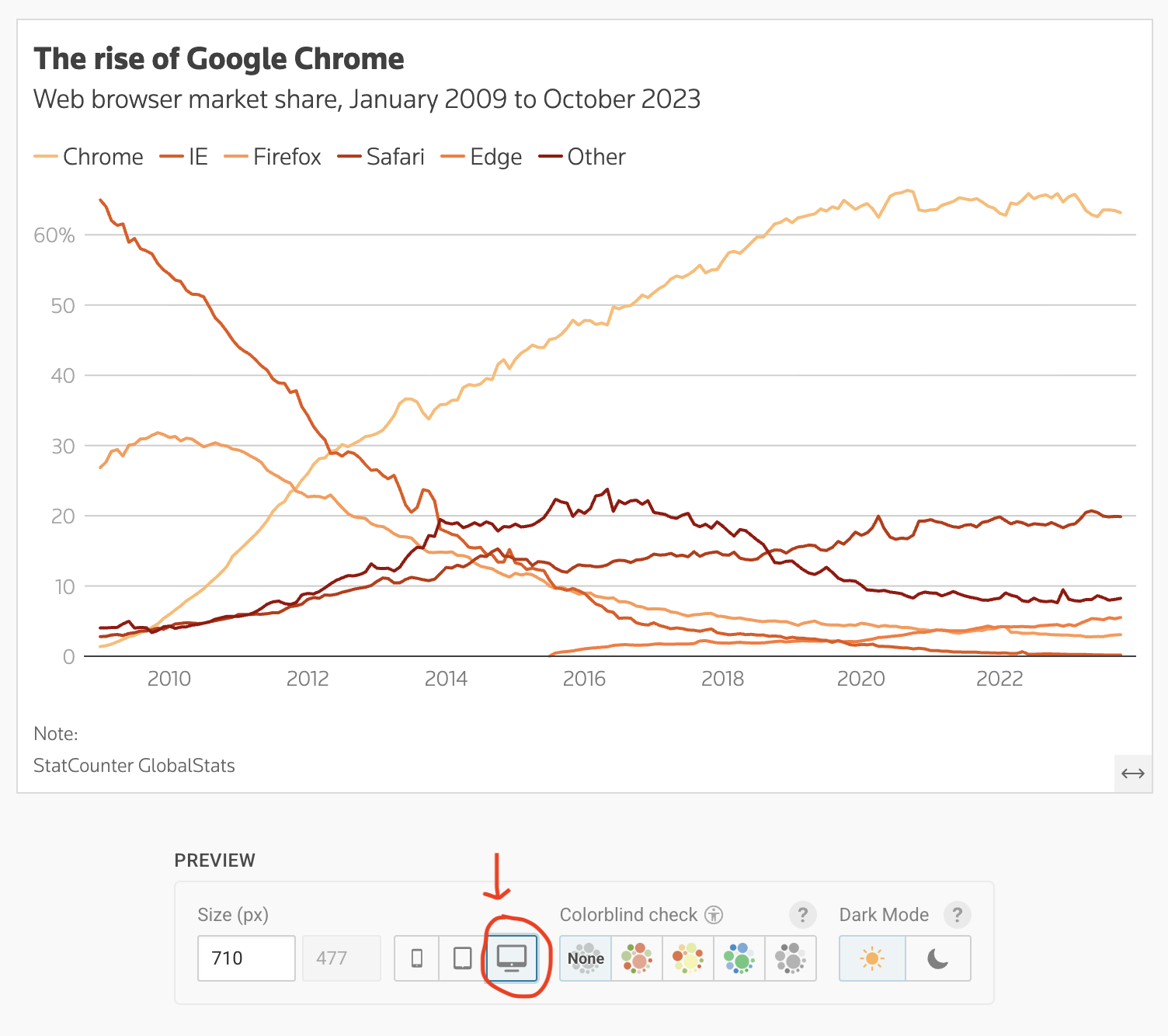
Use the mobile/desktop preview toggle at the top of the editor to switch between views and check that each annotation appears only where it should.
When to use this
- Your annotation overlaps a data point or axis label on one screen size but not the other.
- You want to use a shorter label on mobile to avoid crowding.
- You are annotating a specific region of a chart that shifts position between mobile and desktop layouts.